The real value of a spreadsheet is not simply having a form that looks professional. It is having a repeatable record that connects the original contract position with the proposed modification and the eventual approved result. A useful workbook can therefore function as a request form, estimating worksheet, change register, approval record, and management report when it is structured carefully.
Construction teams frequently use Excel because it is familiar, flexible, and capable of handling calculations, tables, filters, formulas, and printable forms. Microsoft describes spreadsheets as tools for organizing, calculating, analyzing, and visualizing data, which makes the format suitable for a change-control workflow that combines narrative information with numerical data.
However, Excel should support the contractual process rather than replace it. A spreadsheet does not by itself create authorization, establish contractual rights, or determine whether a particular change is compensable. The actual contract, applicable project procedures, and required approvals remain controlling.
This guide explains how to design a practical change order workbook, what fields to include, how to calculate costs and time impacts, how to maintain a reliable log, how to avoid common spreadsheet errors, and how to build a workflow that remains useful from the first change request through final project closeout.

What Is a Change Order?
A change order is a formal record of an agreed or proposed modification to work covered by an existing project agreement. Depending on the contract and project environment, a change can affect scope, price, completion time, specifications, quantities, sequence, or other contractual requirements.
The distinction between a request and an approved change is particularly important. A person may ask for an additional room, revised equipment, different finishes, or a design correction, but that request is not automatically an approved change. The workbook should preserve the difference between an idea, a priced proposal, a submitted request, a negotiated amount, and an authorized change.
Construction contracts are generally made up of multiple documents rather than a single sheet. Typical contract documents can include the agreement, conditions, drawings, specifications, schedule, schedule of values, and bill of quantities. A change-control record therefore works best when it points back to the relevant contract document or project reference instead of describing the change in isolation.
A practical change order record should answer five questions quickly: What changed? Why did it change? What does it cost? Does it affect time? Who authorized it? Those questions provide the foundation for the spreadsheet structure.
The most effective change order systems also preserve history. If an estimate changes from $12,000 to $15,000 during negotiation, the revised figure should not silently erase the original proposal. Maintaining a clear revision trail makes later reconciliation easier and helps the project team understand how the final value was reached.
Why Use a change order template excel?
Excel is particularly useful when a project needs a customizable change-control tool without introducing a specialized system. A workbook can contain separate tabs for the change request, estimate, change log, supporting references, and management summary while keeping the calculations connected.
A well-built template also reduces the amount of repetitive formatting required for every new change. Instead of recreating headers, formulas, approval blocks, and cost tables, the project team can duplicate a controlled structure and enter the new project-specific information.
Another benefit is transparency. A spreadsheet can show the original contract value, approved changes, pending proposals, credits, revised contract value, and schedule impacts in a single view. This makes it easier for project managers and commercial teams to identify changes that require attention.
The format is also flexible enough for small residential work and larger commercial projects. A small contractor might need only a single change form and a simple log, while a larger team can use linked worksheets for labor, material, equipment, subcontractor pricing, and approval status.
The key is to avoid making the workbook unnecessarily complicated. A template with 50 columns that nobody completes consistently is less useful than a focused spreadsheet that captures the information required for sound project control.

Core Components of a Professional Change Order Workbook
The first worksheet should normally identify the project and the individual change. Useful fields include project name, project number, contract number, change number, date raised, requesting party, contractor, client, consultant, and person preparing the record.
The next section should describe the change itself. Avoid vague entries such as “modify electrical work.” A stronger description explains what is being added, removed, substituted, relocated, or corrected and identifies the affected area, drawing, specification, or work package whenever possible.
A reason-for-change field is equally valuable. Common categories can include owner request, design revision, unforeseen condition, coordination issue, code-related modification, material substitution, error or omission, value engineering, or contractor-initiated improvement. The categories should reflect the project’s actual workflow rather than being copied blindly from another organization.
The workbook should also record the impact. At minimum, consider cost, schedule, labor, materials, equipment, procurement, sequencing, quality, and coordination. Some changes have no price impact but still affect the schedule, while others increase cost without extending the completion date.
Finally, include an approval section that records status, responsible party, decision date, approval reference, and relevant signatures or document references. The spreadsheet should make it obvious whether work is merely proposed or has actually been authorized.
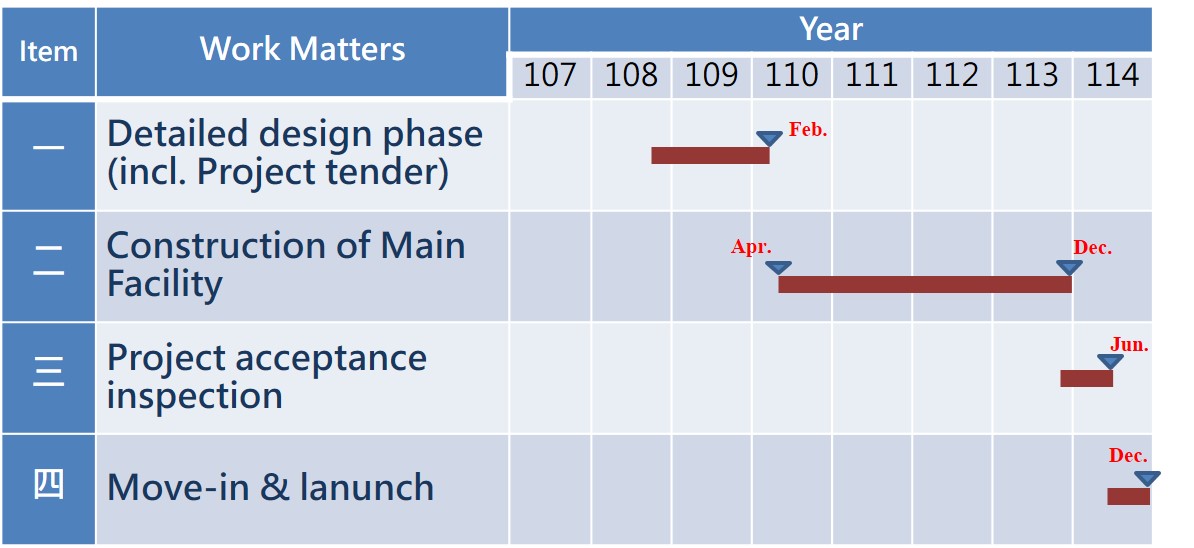
Project Identification Fields
Project identification is more important than it may appear. A change record separated from its project information can become difficult to interpret once a contractor is managing multiple jobs or multiple revisions of the same work package.
Use a consistent project ID, contract number, and change number. The change number should normally be unique within the relevant project or contract and should not be casually reused after rejection or cancellation.
Date fields should be separated where useful. For example, the date identified, date submitted, date priced, date negotiated, date approved, and date incorporated into billing may all be different. Combining them into one generic “date” field can hide important process history.
The requesting party is another valuable field. Knowing whether a change originated with the owner, architect, engineer, subcontractor, field team, regulatory authority, or internal project-management process can help explain why the change occurred.
Use controlled formats wherever practical. Dates should be real Excel dates rather than typed text, project IDs should follow one naming convention, and status values should come from a controlled list. Consistency improves sorting, filtering, reporting, and formula reliability.
Scope and Description
A good description should be specific without becoming a miniature specification. The objective is to provide enough information that a reviewer can understand the requested modification without guessing what the original scope contained.
For example, “add two outlets” is less informative than “add two 20A receptacles at the east wall of the revised laboratory workbench area shown on drawing E-204.” The second description connects the request to a location and reference point.
Where a change removes existing work, describe both sides of the adjustment. State what is deleted and what replaces it. This is especially important when calculating credits, because a new material cost may need to be compared with the value of work removed from the original scope.
Attach or reference supporting documentation where appropriate. Depending on the project, that may include revised drawings, specifications, RFIs, meeting minutes, photographs, field measurements, supplier quotations, or correspondence.
Do not overload the description field with assumptions. If an assumption materially affects price or time, give it its own field or note so that reviewers can identify it quickly during negotiation.

Designing the Cost Section
Cost calculations are often the most valuable part of an Excel change order workbook. A basic calculation can be as simple as quantity multiplied by unit price, but a professional model should distinguish direct costs, markups, credits, taxes, allowances, and other contractual adjustments where relevant.
Material rows can include item description, unit, quantity, unit cost, extended cost, adjustment, and notes. Labor rows can include trade, crew size, hours or days, labor rate, burden, and extended cost. Equipment rows can similarly capture equipment type, quantity, duration, rate, and total.
A useful summary then rolls these line items into subtotals. For example, a hypothetical change might contain $8,400 of material, $4,800 of labor, and $1,200 of equipment. The direct cost would be $14,400 before any applicable markup, tax, or contractual adjustment.
Do not treat hypothetical numbers as universal pricing rules. Labor burden, overhead, profit, taxes, subcontractor markups, and allowable percentages depend on the contract, jurisdiction, company policy, and commercial arrangement.
Credits should be represented clearly rather than hidden in notes. A deleted scope item may be entered as a negative amount so that the net change accurately reflects both additions and deductions. Consistent sign conventions are essential for reliable totals.

Useful Excel Cost Formulas
For a simple line item, the extended amount can be calculated with a formula such as quantity multiplied by unit rate. In Excel, if quantity is in cell D8 and unit rate is in cell E8, the extended cost could be represented by =D8*E8.
A subtotal can be created with SUM. If line totals occupy cells F8 through F20, =SUM(F8:F20) provides a straightforward subtotal. In a structured Excel table, structured references can make formulas easier to read and maintain.
A net change can be calculated by adding positive additions and negative credits. For example, if additions are represented as positive values and deletions as negative values, the net amount is simply the sum of the applicable rows.
For a running contract value, do not automatically add every proposal. A useful distinction is between original contract value, approved change value, pending change value, and forecast value. This prevents an unapproved estimate from being mistaken for an executed contract adjustment.
Protect important formula cells after testing the workbook. Input cells should be visually distinct from calculation cells, and formulas should be locked where appropriate. A protected workbook can still allow users to enter information in designated fields while reducing accidental formula deletion.

Building the Change Order Log
A change order form describes one change, while a change log provides the project-level picture. The log should contain one row per change event or per controlled revision, depending on the organization’s numbering policy.
Useful columns include change number, date identified, description, origin, responsible person, status, submitted amount, negotiated amount, approved amount, schedule impact, approval date, and reference documents.
A strong log should retain rejected and withdrawn changes rather than deleting them. Keeping them preserves the history of what was proposed and why the current contract position differs from earlier expectations.
Status values should be standardized. A practical sequence might be Draft, Submitted, Under Review, Under Negotiation, Approved, Rejected, Withdrawn, and Closed. The exact terms can be adapted to the project.
The log should also make unresolved items visible. A change that has been sitting in “Submitted” for several weeks deserves different attention from a change that was approved yesterday. Aging columns, filters, and conditional formatting can make these issues easier to identify.
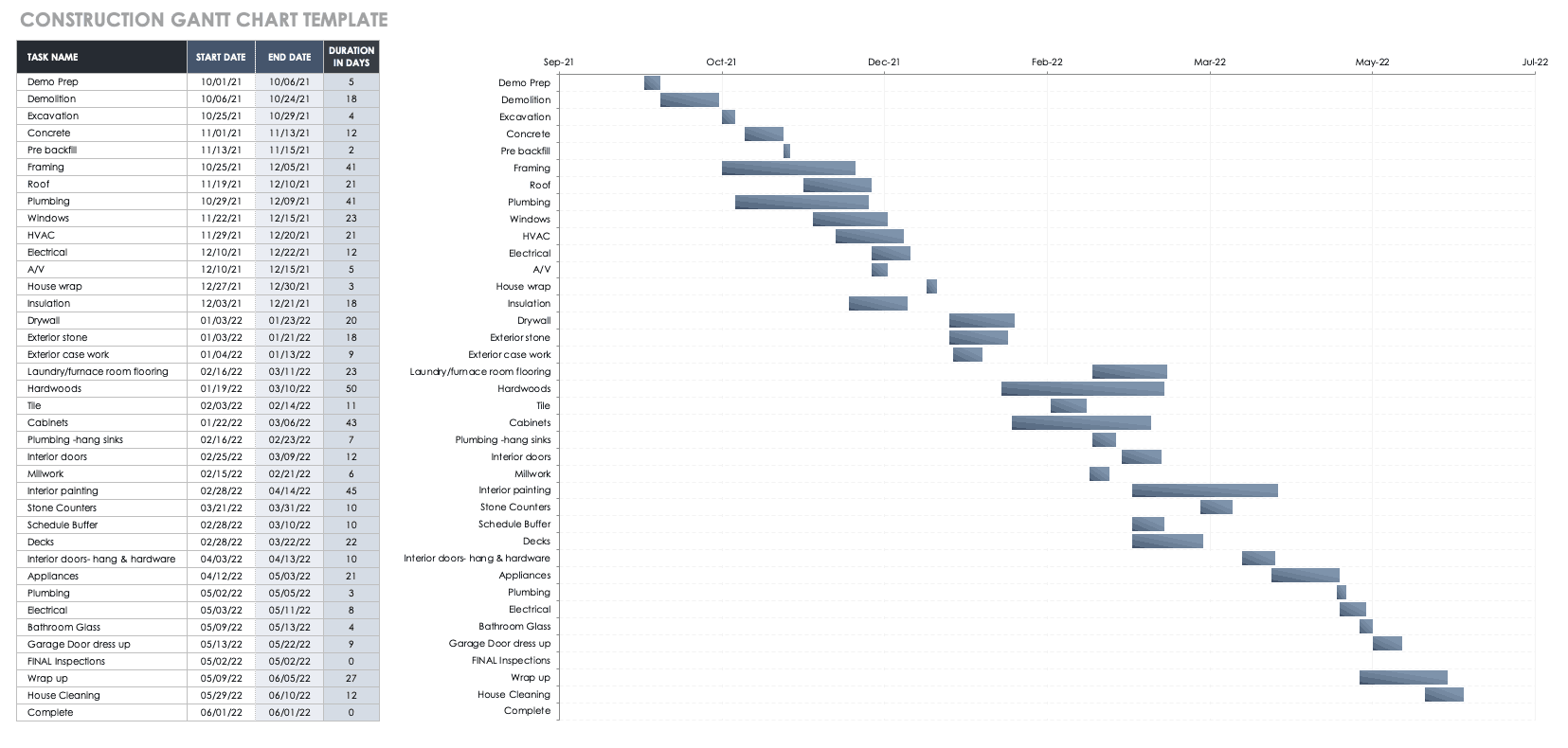
Connecting Change Orders to the Project Schedule
Cost is only half of change management. A modification can alter activity sequence, procurement timing, crew requirements, inspections, access, or the overall completion date even when the financial impact is relatively small.
Record schedule impact in a dedicated field instead of burying it in narrative notes. Depending on the project, this may be expressed as working days, calendar days, milestone movement, or a statement that the change has no anticipated time impact.
Do not assume that the number of days required to perform the changed work automatically equals an extension to the contractual completion date. The actual schedule effect depends on sequencing, available float, concurrent activities, procurement, and the contract’s change procedures.
A useful spreadsheet can include planned start, planned finish, revised start, revised finish, and schedule-impact days. This provides a bridge between the commercial change record and the project schedule.
For complex projects, the spreadsheet should reference the actual scheduling system or schedule revision rather than attempting to reproduce the entire project schedule inside the change order workbook.

Using Supporting Documents and Evidence
A change order should rarely exist as an isolated number. The strongest record connects the requested modification with the evidence that explains why it was necessary and how the proposed value was developed.
For a design revision, that evidence might be a revised drawing, architect’s instruction, or RFI response. For an unforeseen condition, photographs, field measurements, inspection records, or site reports may be more useful.
For pricing, supplier quotations, subcontractor proposals, quantity takeoffs, labor calculations, and equipment rates can provide the underlying basis. The spreadsheet does not need to contain every document; it should provide a reliable reference to where the supporting information is stored.
Use consistent reference numbers. If a change relates to RFI-047, drawing revision A3, and meeting minutes dated July 18, record those references in dedicated fields or notes. This makes later retrieval substantially easier.
Avoid storing sensitive information directly in a broadly shared workbook unless it is genuinely required. The change log should contain enough information to find supporting evidence without unnecessarily exposing private commercial or personal information.

How to Create a change order template excel From Scratch
Start with a clean workbook and decide what the project team actually needs before adding formulas. A practical starting point is five worksheets: Instructions, Change Request, Estimate, Change Log, and Summary.
The Instructions sheet should explain the status values, numbering convention, input cells, calculation logic, and sign convention for additions and credits. This reduces training time and helps prevent inconsistent entries when several people use the workbook.
The Change Request sheet should resemble a professional document rather than a raw database. It should contain project identification, change description, reason, supporting references, price impact, schedule impact, and approval fields.
The Estimate sheet should be optimized for calculations. Use separate sections or tables for materials, labor, equipment, subcontractors, and other applicable costs. Keep assumptions visible and distinguish them from hard inputs.
The Change Log should remain database-like: one row per change, consistent columns, filters, and no merged cells inside the data area. The Summary sheet can then provide management-level totals without disrupting the underlying records.

Use Excel Tables for the Log
Converting the change log into an Excel Table is one of the simplest ways to improve maintainability. Tables automatically expand when new rows are added and make filters easier to use.
Tables also make formulas more readable. Instead of relying heavily on references such as G2:G500, structured references can identify fields by name. This is especially helpful when the workbook grows over the life of a project.
Keep the raw data table free from decorative merged cells. Headers should be short and consistent, and each row should represent one logical record.
Freeze the header row so that column names remain visible while scrolling. Add filters for status, origin, responsible person, approval state, and date where these fields are useful.
Use data validation for controlled fields. Excel can restrict entries to a predefined list, helping prevent variations such as “Approved,” “approved,” “APPROVED,” and “Approve” from appearing as separate categories in reports.

How to Calculate the Revised Contract Value
A simple contract-value model begins with the original contract amount. Approved positive changes increase that amount, while approved credits reduce it.
For example, suppose a hypothetical project begins at $500,000. An approved addition of $18,000 and an approved credit of $4,000 would produce a revised contract value of $514,000.
Pending changes should normally remain separate from that approved value. If a proposed $25,000 change is still under negotiation, adding it to the executed contract total can create a misleading picture of the current contractual position.
A useful summary therefore contains at least four figures: original contract value, approved changes, current approved contract value, and pending exposure. Forecast information can be added separately if the project team uses it.
Always define the calculation logic in the workbook. A future user should not have to inspect several formulas to determine whether pending items are included in a headline total.

Practical Examples
Consider a hypothetical commercial renovation in which the owner requests upgraded flooring. The original scope contains standard vinyl flooring, while the revised request specifies a higher-grade finish in selected rooms.
The change request should identify the affected rooms, original material, proposed replacement, reason for the request, quantity difference, unit-price difference, and any installation implications. If the original flooring has already been ordered, the record should also identify potential cancellation or restocking costs.
The estimate could show the original scope credit separately from the new material and installation cost. This produces a net change rather than simply charging the entire replacement cost.
The schedule assessment should consider whether the upgraded material has a different lead time. If procurement takes longer, the schedule section should record that risk and identify the relevant milestone.
Once the change is approved, the final authorized amount and approved schedule effect should be transferred to the change log and reflected in the appropriate project controls.

Example: Unforeseen Site Condition
Imagine a hypothetical excavation project where field conditions differ materially from the assumptions used for the original estimate. The field team identifies the condition and reports it to the project manager.
The first spreadsheet entry should capture the date identified, location, description, and immediate project implications. The team should not wait until a final price is negotiated before recording the event.
Supporting evidence might include photographs, measurements, inspection records, field notes, and relevant contract or drawing references. The estimate can then be developed after the condition has been documented.
Labor, equipment, disposal, material, and subcontractor costs should be itemized where appropriate. If some costs remain uncertain, label them as estimates rather than presenting them as final values.
This example demonstrates why a change log is a management tool rather than merely an archive. Early recording provides visibility into open issues while there is still time to investigate, price, negotiate, and plan the work.

How to Change Order in Excel Spreadsheet
When someone searches for how to change order in excel spreadsheet, they may actually mean one of two things: creating a construction change-order record or rearranging the order of spreadsheet data. These are different tasks and should not be confused.
For construction change management, the correct approach is to create a structured change record rather than simply modifying the original contract row. Preserve the original baseline and record the change as a separate transaction.
Start by duplicating the approved template or adding a new row to the change log. Assign the next change number, enter the identification date, describe the change, record the origin, and set the initial status.
Then develop the cost and schedule assessment. Keep requested, estimated, negotiated, and approved values separate when the workflow requires those distinctions.
Finally, update the project summary only when the relevant change reaches the status defined by your project-control procedure. This prevents the spreadsheet from showing proposed values as though they were already part of the approved contract.
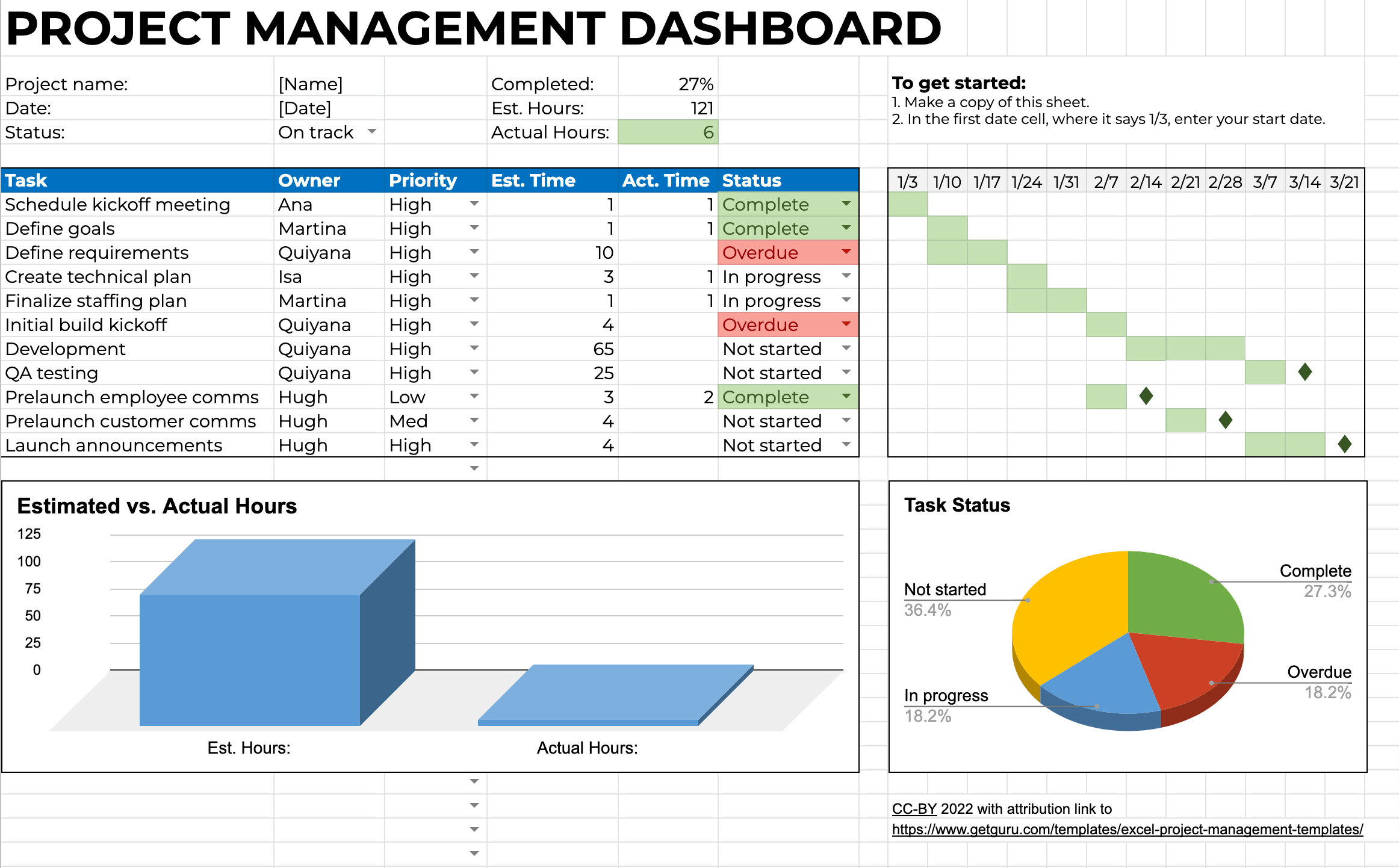
How to Change the Order in Excel
The phrase how to change the order in excel can also refer to sorting or rearranging rows. If the goal is to change the sequence of ordinary spreadsheet data, first select the complete dataset rather than only one column.
Sorting only one column can separate values from the records they belong to. For example, sorting a change number column without moving the corresponding description, amount, and approval status can corrupt the log.
Excel’s Sort feature can arrange records by date, status, amount, project number, or another field. For a change-order register, sorting by date identified can provide a chronological history, while sorting by status can make open items easier to review.
Filtering is often safer than permanently rearranging the data. A project manager can filter the log to show only pending changes without altering the underlying row order.
For an audit-oriented workbook, keep a stable change-number field even when the display order changes. The change number should identify the record independently from its current position in the worksheet.

Formatting a Professional Change Order Sheet
Good formatting improves comprehension, but formatting should serve the information rather than dominate it. A professional sheet normally has a clear title, project identification block, change description, cost table, schedule section, and approval area.
Use consistent number formats. Currency should look like currency, percentages should look like percentages, and dates should use one recognizable format. Avoid mixing text such as “TBD,” “later,” and blank cells when a controlled status or date convention can express the situation more accurately.
Input cells can use a consistent visual treatment, while formula cells can be protected. The goal is to make it obvious where a user should type and where the workbook is calculating.
Use conditional formatting carefully. Highlighting overdue open changes or unusually large variances can be helpful, but excessive colors can make the workbook difficult to read.
Before issuing the form externally, review print settings. A change order should remain readable when exported to PDF or printed, with headings, totals, and approval fields appearing in logical positions.

Different Types of Change Order Templates
A single workbook does not necessarily need to serve every purpose. Different project teams may benefit from specialized sheets depending on the nature of their changes.
A simple change form focuses on project details, description, reason, price, schedule, and approval. It works well when changes are relatively straightforward and pricing does not require extensive supporting calculations.
An estimating-oriented workbook adds detailed labor, material, equipment, subcontractor, tax, markup, and summary sections. This is useful when the person preparing the change also needs to build the price.
A change log is designed around monitoring rather than presentation. It emphasizes status, dates, amounts, responsibility, aging, and references. It is usually better suited to a management dashboard than a printable approval form.
A request form is focused on gathering information before a decision is made. It may capture the requested scope, reason, impact, supporting documents, priority, and proposed action without treating the requested amount as an approved contractual value.
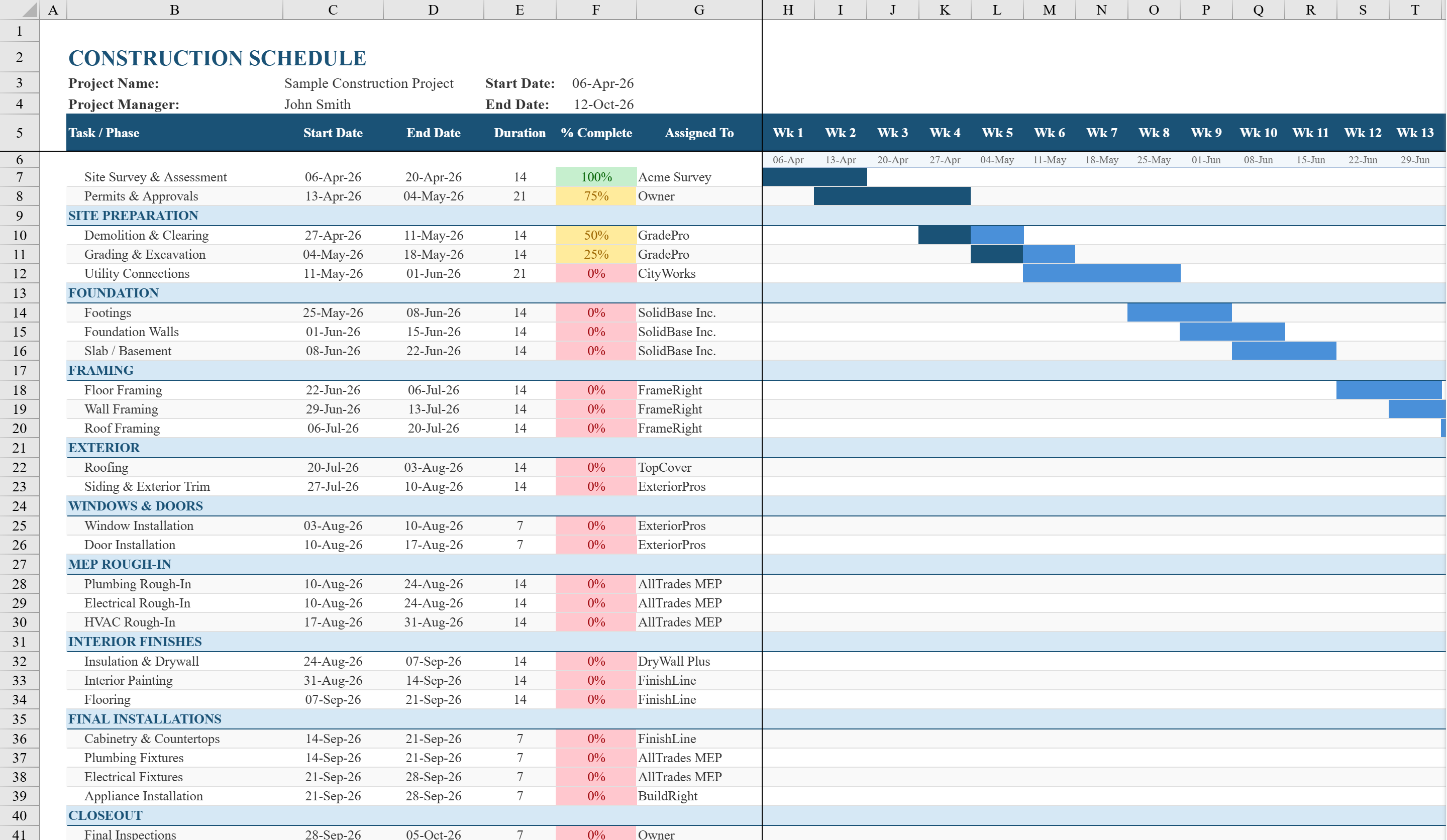
Best Practices for Change Order Tracking
Record changes early. Waiting until a proposal has been fully priced can cause the project team to lose visibility into the volume and age of unresolved changes.
Keep rejected changes in the history. Deleting them may make the workbook look cleaner, but it removes information that could explain later correspondence or repeated requests.
Separate estimates from approvals. A proposed amount is not necessarily the same as the amount ultimately agreed, and neither should automatically be treated as the current contract value.
Review the log regularly. A weekly or reporting-cycle review can identify open items, missing documentation, aging requests, unresolved schedule impacts, and differences between internal and external records.
Reconcile the workbook with the project’s authoritative records. The spreadsheet should not become a parallel version of the contract that quietly diverges from signed documents, approved instructions, or accounting records.

Common Mistakes to Avoid
One common mistake is overwriting the original contract amount instead of maintaining a baseline. Once the original value disappears, it becomes much harder to calculate cumulative change accurately.
Another mistake is using free-text status values. Small differences in spelling can cause filters and formulas to treat identical business states as separate categories.
Leaving schedule impact blank is also problematic. A blank cell may mean “not assessed,” while zero may mean “assessed and no impact.” Those are materially different conditions.
Another frequent problem is breaking formulas by inserting values directly into calculation cells. Protect formula areas and use separate input columns wherever possible.
Finally, avoid turning the workbook into a substitute for formal approvals. A spreadsheet can document the process, but project-specific authorization requirements must come from the applicable contract and procedures.

Practical Solution
The most practical approach is to build a five-part workbook: an instructions sheet, a change-request form, an estimating sheet, a change log, and a management summary. This structure is simple enough for small teams while remaining expandable for larger projects.
First, establish the baseline. Enter the project name, contract number, original contract value, original completion date, and the naming convention for changes. Lock the baseline fields after they have been reviewed so they are not accidentally replaced.
Second, create the intake process. Whenever a potential change is identified, create a record immediately with a unique number, date, source, description, and preliminary status. Add references to drawings, RFIs, correspondence, photographs, or other supporting evidence as appropriate.
Third, price the change systematically. Break the estimate into logical cost categories, use consistent units and rates, record additions and credits separately, and identify assumptions. Do not present an estimate as approved value until the required decision has occurred.
Fourth, assess time and implementation. Record whether the change affects procurement, sequencing, labor, equipment, milestones, or completion. Where there is an actual schedule revision, reference the relevant schedule update rather than relying solely on a narrative statement.
Fifth, complete the approval and reconciliation process. Record the decision, final value, approved time adjustment where applicable, and supporting reference. Update the change log and management summary so the current approved contract position remains clear.
Sixth, review open items on a defined rhythm. Sort or filter the log by status, age, responsible party, and value. This transforms the spreadsheet from a passive filing system into an active project-control tool.
Finally, preserve the original record. Do not silently replace earlier estimates or descriptions. If a material revision is needed, retain enough history to understand what changed, when it changed, and why the final result differs from the original proposal.

Reference Examples
The following examples illustrate the kinds of forms, logs, cost sheets, and project-control layouts that can inform the design of an Excel-based change-order workflow. They are reference visuals, not claims that any particular format is universally required.
change order template excel free
Source: Etsy
change order template excel free download
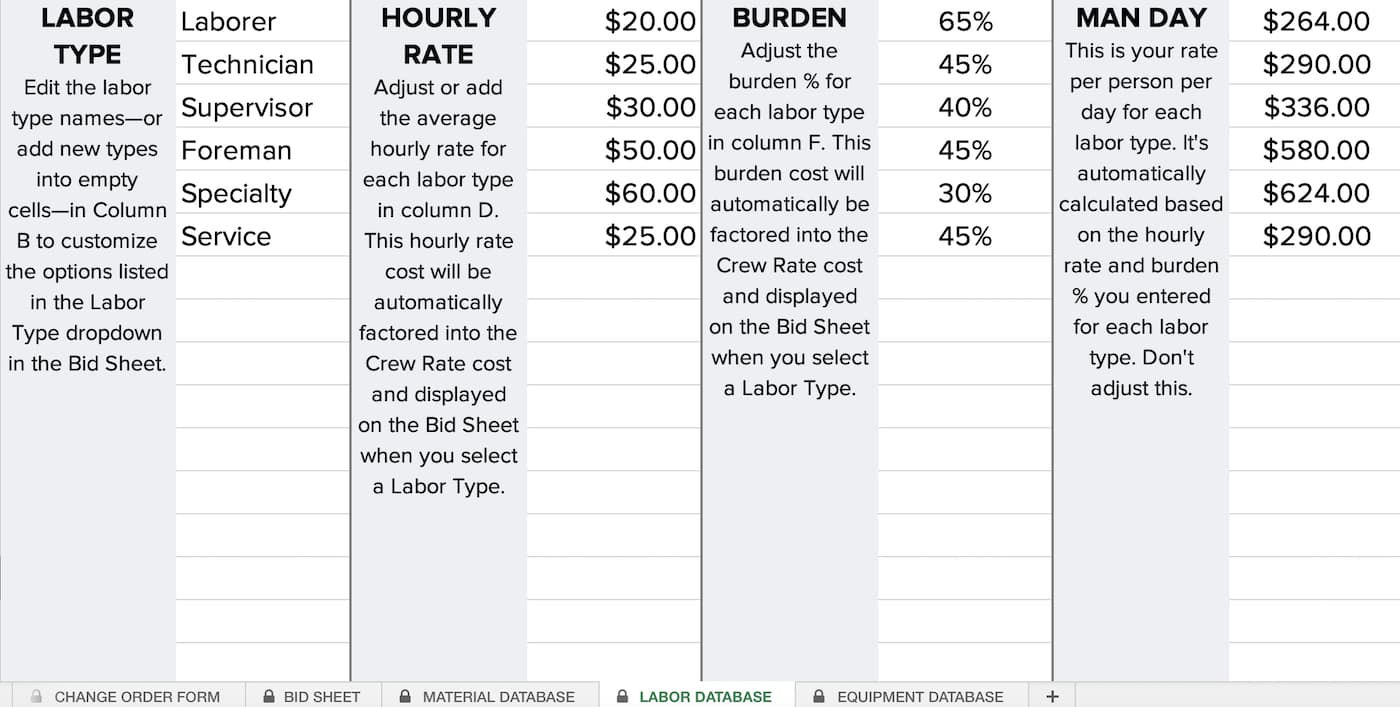
Source: TeamGantt
change order template excel download
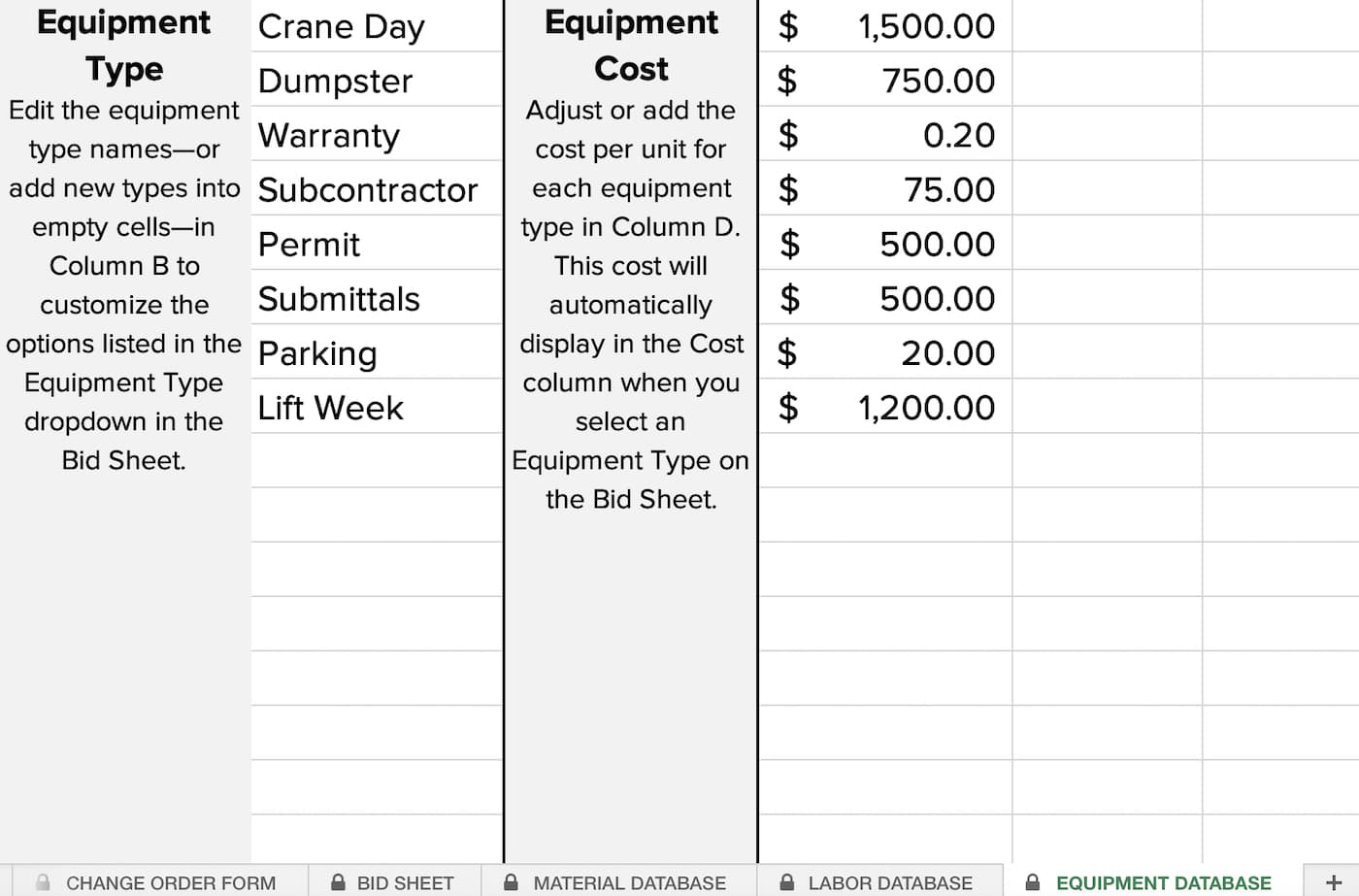
Source: TeamGantt
change order template excel format
Source: Fisher Scoggins Waters
change order log template excel
Source: Etsy
change order excel template
Source: ReformaOS
construction change order template excel
Source: Gen Re
change order tracking template excel

Source: BuildBook
change order request template excel

Source: Moth Inc.
change order sheet template
Source: ScaleOcean
how to change order in excel spreadsheet
Source: Venngage
how to change the order in excel
Source: Shortcut
Frequently Asked Questions
What should a change order template excel contain?
At minimum, include project identification, change number, request date, description, reason, affected scope, cost impact, schedule impact, status, approval information, and supporting references. More detailed estimating workbooks can add material, labor, equipment, subcontractor, markup, and tax sections.
Is Excel suitable for construction change orders?
Excel can be very suitable for small and medium workflows or as a project-control layer when the team has clear procedures. It becomes less suitable when the volume of changes, document relationships, approvals, permissions, or collaboration requirements exceed what a spreadsheet can reliably manage.
Should pending changes be included in the contract value?
Normally, pending proposals should be shown separately from the approved contract value. The exact treatment depends on the project’s contractual and financial procedures, but keeping pending exposure distinct prevents proposed amounts from being mistaken for authorized value.
What is the difference between a change request and a change order?
A change request is generally a proposal or request to modify the project. A change order is the formal instrument or approved record used to authorize the modification under the applicable project process. Terminology varies between contracts and organizations.
How should rejected change orders be handled?
Keep them in the historical log with a rejected or withdrawn status. Retaining the record preserves the chronology and prevents the team from losing evidence that the issue was considered but did not become an approved change.
How can I prevent Excel formulas from being overwritten?
Separate input and calculation cells, use Excel Tables where appropriate, apply data validation to controlled fields, test formulas before release, and protect worksheets or formula ranges when practical.
Should a change order spreadsheet replace the contract?
No. The spreadsheet should support documentation, estimating, tracking, and reporting. The governing contract and formally authorized project documents remain the controlling sources for contractual obligations and approvals.
How often should a change order log be updated?
Update it whenever a meaningful event occurs, such as identification of a potential change, submission of pricing, receipt of revised information, negotiation, approval, rejection, or closure. Regular reporting reviews should then reconcile the log with the project’s authoritative records.
Conclusion
A strong change order template excel is more than a formatted form. It is a practical control mechanism for preserving the baseline, documenting why scope changed, calculating the financial effect, recording schedule implications, tracking approvals, and maintaining a reliable history from request through closeout. The best workbook separates original values from proposed and approved changes, uses consistent fields and formulas, protects important calculations, and keeps supporting evidence easy to locate. When those principles are combined with a disciplined review process, Excel can provide a clear and adaptable foundation for managing project changes without sacrificing traceability or clarity. If you need a visual workflow, I can also create an image explaining how a change moves from request to approval.
